


SharePoint 2013 contains templates to display both videos and people in a horizontal fashion presenting a nice presentation in the Everything search results. For an example of the Video horizontal display see this post.
I thought it would be nice to also have this functionality for images as well as attempt to display the hover panel on the items (since the people and video horizontal displays do not incorporate the hover panel). Also, one of my blog readers happened to query about an image horizontal display - so it was time to implement!!
Launch SharePoint Designer 2013 and navigate to the search center display templates (similiar to the steps here).
Locate the Item_Picture.html, right-click and select Copy:


Right-click again and select Edit File in Advanced Mode:

Rename the title and the main div id:

<!--#_
} else {
_#-->

Scroll to the bottom and add an additional closing bracket:

Between the if and the else that you pasted first, enter the following code as shown in the image below:
<div id="_#= $htmlEncode(itemId) =#_" name="Item" class="ms-srch-people-intentItem" onmouseover="_#= ctx.currentItem_ShowHoverPanelCallback =#_" onmouseout="_#= ctx.currentItem_HideHoverPanelCallback =#_">
<div id="ImageInfo">
<!--#_
var pathEncoded = $urlHtmlEncode(ctx.CurrentItem.Path);
var encodedName = $htmlEncode(ctx.CurrentItem.Title);
_#-->
<ul id="ImageCard">
<li id="ImagePic">
<a clicktype="Result" href="_#= pathEncoded =#_" title="_#= encodedName =#_">
<img id="PicPreview" src="_#= pathEncoded =#_" height="80px" width="80px"/>
</a>
</li>
<li id="ImageTitle">
<div id="imageTitle" class="ms-textSmall ms-srch-ellipsis" title="_#= encodedName =#_"> _#= encodedName =#_ </div>
</li>
</ul>
<div id="_#= $htmlEncode(hoverId) =#_" class="ms-srch-hover-outerContainer"></div>
</div>
</div>

Save the the changes and then navigate to your Search Center.
From your Search Center site settings, select Search Query Rules from the Site Collection Administration section:

Select the Local SharePoint Results (System):

After the Query Rules load on the page, scroll down and find the Image entry. From the drop-down menu select Copy:

Change the Rule name:


Change the Query. I was not getting expected results from the InternalFileType property. Therefore I changed my query filter to "(ContentType:PictureItem OR ContentType:Image)".
I also changed the amount of items to 6:
 In the Settings select This block is always shown above core results and also change the Item Display Template to the new Picture Horizontal template:


The images display horizontally and the hover works as well:


I thought it would be nice to also have this functionality for images as well as attempt to display the hover panel on the items (since the people and video horizontal displays do not incorporate the hover panel). Also, one of my blog readers happened to query about an image horizontal display - so it was time to implement!!
Launch SharePoint Designer 2013 and navigate to the search center display templates (similiar to the steps here).
Locate the Item_Picture.html, right-click and select Copy:

Right-click again and select Paste:

Rename the copied file to Item_Picture_CompactHorizontal:
Right-click again and select Edit File in Advanced Mode:

Rename the title and the main div id:

Add the following code as shown in the image below:
<!--#_
if (!Srch.U.n(ctx.CurrentItem.ParentTableReference) && ctx.CurrentItem.ParentTableReference.TotalRows > 1) {
_#-->
if (!Srch.U.n(ctx.CurrentItem.ParentTableReference) && ctx.CurrentItem.ParentTableReference.TotalRows > 1) {
_#-->
} else {
_#-->

Scroll to the bottom and add an additional closing bracket:

Between the if and the else that you pasted first, enter the following code as shown in the image below:
<div id="_#= $htmlEncode(itemId) =#_" name="Item" class="ms-srch-people-intentItem" onmouseover="_#= ctx.currentItem_ShowHoverPanelCallback =#_" onmouseout="_#= ctx.currentItem_HideHoverPanelCallback =#_">
<div id="ImageInfo">
<!--#_
var pathEncoded = $urlHtmlEncode(ctx.CurrentItem.Path);
var encodedName = $htmlEncode(ctx.CurrentItem.Title);
_#-->
<ul id="ImageCard">
<li id="ImagePic">
<a clicktype="Result" href="_#= pathEncoded =#_" title="_#= encodedName =#_">
<img id="PicPreview" src="_#= pathEncoded =#_" height="80px" width="80px"/>
</a>
</li>
<li id="ImageTitle">
<div id="imageTitle" class="ms-textSmall ms-srch-ellipsis" title="_#= encodedName =#_"> _#= encodedName =#_ </div>
</li>
</ul>
<div id="_#= $htmlEncode(hoverId) =#_" class="ms-srch-hover-outerContainer"></div>
</div>
</div>

Save the the changes and then navigate to your Search Center.
From your Search Center site settings, select Search Query Rules from the Site Collection Administration section:
Select the Local SharePoint Results (System):

After the Query Rules load on the page, scroll down and find the Image entry. From the drop-down menu select Copy:

Change the Rule name:

Scroll down to the Actions sections and click on edit to edit the result block:
Change the Query. I was not getting expected results from the InternalFileType property. Therefore I changed my query filter to "(ContentType:PictureItem OR ContentType:Image)".
I also changed the amount of items to 6:


Click OK. Click Save on the Edit Query Rule page.
Navigate to your search page and peform a search for images:
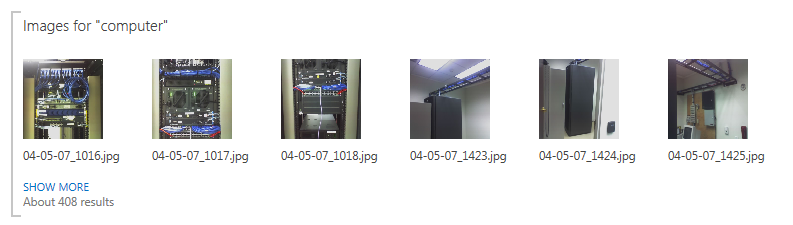
The images display horizontally and the hover works as well:

Search On!!!

