


Ever since I found PhoeNIX Bird Networks blog post on listing out SharePoint products using PowerShell, I have been using variations of the commands to list out various installed products. During my latest installation repair, I realized that not all SharePoint products or components contain "SharePoint" in the name.
Therefore, I modified the commands slightly to produce a full listing of SharePoint-based products based on the product code:
$listApps=Get-WmiObject -Class Win32_Product | Where {$_.IdentifyingNumber -like “*90150000-*”}
$listApps | Sort -Property Name | ft -Autosize
Now, the listing produces a much larger and thorough listing of SharePoint components:

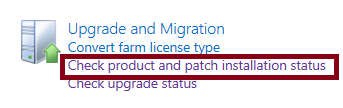
You may also view a similiar listing from Central Admin. Simply navigate to your SharePoint Central Administration site and on the main page under Upgrade and Migration, click on "Check product and patch installation status":

The default view is Farm, but you may use the View dropdown menu to select and isolate a particular server in your SharePoint farm.
Therefore, I modified the commands slightly to produce a full listing of SharePoint-based products based on the product code:
$listApps=Get-WmiObject -Class Win32_Product | Where {$_.IdentifyingNumber -like “*90150000-*”}
$listApps | Sort -Property Name | ft -Autosize
Now, the listing produces a much larger and thorough listing of SharePoint components:

You may also view a similiar listing from Central Admin. Simply navigate to your SharePoint Central Administration site and on the main page under Upgrade and Migration, click on "Check product and patch installation status":
That brings you to the Manage Patch Status page and lists out the SharePoint 2013 Products on each server:

The default view is Farm, but you may use the View dropdown menu to select and isolate a particular server in your SharePoint farm.

