


When you add a rich text column to a list from the SharePoint UI, you select Multiple lines of text as the type of information:

Towards the bottom, you have two type of text options, Plain text or Enhanced rich text:
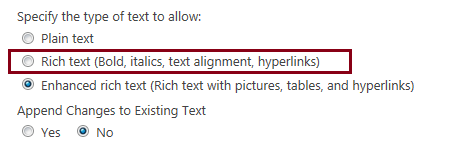
 After you create the column and go back in to edit the properties, you now get a third "in-between" Rich text option:
I needed to add a rich text column programatically to a list using the client side object model (CSOM). I found general guidelines for adding a field to a list here on MSDN.
Based on that post, I followed suit and constructed my code:
Field styleField = list.Fields.AddFieldAsXml("<Field DisplayName='Style' Type='Note' />", true, AddFieldOptions.DefaultValue);
FieldMultiLineText fieldMultiLineText = context.CastTo<FieldMultiLineText>(styleField);
fieldMultiLineText.RichText = true;
fieldMultiLineText.AllowHyperlink = true;
fieldMultiLineText.UpdateAndPushChanges(true);
list.Update();
context.ExecuteQuery();
I knew what the real type of Field the object was so I casted it to FieldMultiLineText. This allowed me to set the RichText property to true. However, upon generation, the settings of the column where just the regular Rich Text:

This was actually what I needed but I thought, how do you create one as Enhanced rich text? There is a RichTextMode property but it is not exposed in a FieldMultiLineText object. After trying several different things, I just decided to read the properties of a created Enhanced rich text column and use the SchemaXML to generate the new field:
Field rtfField = list.Fields.AddFieldAsXml("<Field DisplayName=\"Enhanced RTF\" Type=\"Note\" RestrictedMode=\"TRUE\" RichText=\"TRUE\" RichTextMode=\"FullHtml\" RowOrdinal=\"0\" Required=\"FALSE\" EnforceUniqueValues=\"FALSE\" Indexed=\"FALSE\" NumLines=\"6\" IsolateStyles=\"TRUE\" AppendOnly=\"FALSE\" />"
, true, AddFieldOptions.DefaultValue);
rtfField.UpdateAndPushChanges(true);list.Update();
context.ExecuteQuery();
RestrictedMode=\"TRUE\" RichText=\"TRUE\" RichTextMode=\"FullHtml\"
I believe that these properties are the key to creating it properly. I did not perform any casts as it seemed that was working against me. Once I just used the Field object and the XML, all was good:

Towards the bottom, you have two type of text options, Plain text or Enhanced rich text:
I needed to add a rich text column programatically to a list using the client side object model (CSOM). I found general guidelines for adding a field to a list here on MSDN.
Based on that post, I followed suit and constructed my code:
Field styleField = list.Fields.AddFieldAsXml("<Field DisplayName='Style' Type='Note' />", true, AddFieldOptions.DefaultValue);
FieldMultiLineText fieldMultiLineText = context.CastTo<FieldMultiLineText>(styleField);
fieldMultiLineText.RichText = true;
fieldMultiLineText.AllowHyperlink = true;
fieldMultiLineText.UpdateAndPushChanges(true);
list.Update();
context.ExecuteQuery();
I knew what the real type of Field the object was so I casted it to FieldMultiLineText. This allowed me to set the RichText property to true. However, upon generation, the settings of the column where just the regular Rich Text:
This was actually what I needed but I thought, how do you create one as Enhanced rich text? There is a RichTextMode property but it is not exposed in a FieldMultiLineText object. After trying several different things, I just decided to read the properties of a created Enhanced rich text column and use the SchemaXML to generate the new field:
Field rtfField = list.Fields.AddFieldAsXml("<Field DisplayName=\"Enhanced RTF\" Type=\"Note\" RestrictedMode=\"TRUE\" RichText=\"TRUE\" RichTextMode=\"FullHtml\" RowOrdinal=\"0\" Required=\"FALSE\" EnforceUniqueValues=\"FALSE\" Indexed=\"FALSE\" NumLines=\"6\" IsolateStyles=\"TRUE\" AppendOnly=\"FALSE\" />"
, true, AddFieldOptions.DefaultValue);
rtfField.UpdateAndPushChanges(true);list.Update();
context.ExecuteQuery();
RestrictedMode=\"TRUE\" RichText=\"TRUE\" RichTextMode=\"FullHtml\"
I believe that these properties are the key to creating it properly. I did not perform any casts as it seemed that was working against me. Once I just used the Field object and the XML, all was good:

