Showing posts with label InfoPath. Show all posts

Tuesday, February 26, 2013

InfoPath Not Showing Full Text in Drop-Down Boxes

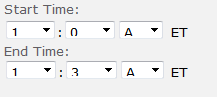
Several users were experiencing a strange issue when viewing a certain InfoPath browser-based form from our intranet using IE9. This form has several drop-downs for a controlled start and end time creation. However, the values seems to be cut off for several people as shown below:

 
Resolution was investigated but that wasn't the case. I checked the browser zoom level - nothing. I verified compatibility modes - nada. I even tried checking F12 (Developer Tools) for CSS differences on the controls - nope.
 
I finally noticed that the Text size setting was set to Larger in IE9. I switched to Medium:

 
After switching to Medium, the form rendered fine:

 
It was a fluke thing and it only affected part of the form. Hopefully this may save people trouble if they ever run into this!


Sunday, January 20, 2013

InfoPath 2013: Using the Unsupported position() Function

When using XPath expressions in InfoPath you may find that position() and last() are not supported. They are not supported in the intended XPath expression usage where you apply the function to a data element to find the position or retrieve the last element. However, the position() function by itself may still be applied to a Calculated Value control to determine the current position of an element in a repeating data structure.

At first it doesn't appear that position() works when you attempt to add a Calculated Value control. Entering position() in the XPath box produces the unsupported message.


Function position() and last() are not supported.
 
 
However, if you simply select a field or function that is supported you may click OK to add the Calculated Value control to your form. Then you can edit the Calculated Value Properties:


And enter position() in the XPath:


Clicking OK this time allows the function to be used. This function comes in handy when used with repeating tables to produce a row number or incremental value to each data entry:


So position() is not supported but it is works by itself.


Thursday, November 8, 2012

InfoPath 2007/2010/2013: Dynamically Populate a Nested Repeating Table from a Secondary Data Source

This post builds on top of my original population of repeating table post. I had a reader ask about a nested solution in which the repeating group not only contained fields, but yet another repeating group.

The scenario of the form fields looks like the following:


In my examples (on my blog and in my InfoPath How-To book), I used Regions and Offices as data sources (they are SharePoint lists but web services or other data sources work the same way - just different XPath). Offices has a lookup column for the Region.

For the nested scenario, I decided to create a third datasource named Clients. The Clients have a relationship to Offices. Therefore, in my Clients SharePoint list, I have a lookup column to Offices. The overall relationships are:
  • Regions can have one-to-many Offices (An Office can only have one Region)
  • Offices can have one-to-many Clients (A Client can only belong to one Office)

My Clients data source contains the Client Name (Title), Address, and Phone along with the Office field which is the Office ID:


So now, when I select a Region from the drop-down in my form, I want to get the Offices for that Region along with all of the Clients that belong to that Office. Since it's a nested structure it calls for a nested loop within the Populating code-behind (see my previous post for context):

(click on image to zoom in)


The nested loop code involves these steps:
  • Creating the data source object for the Clients list
  • Setting the query value to the current Office ID
  • Executing the query against the data source
  • Looping through the data source results and populating the nested repeating table structure
The results speak for themselves:


 I will have more details on these steps as well as downloadable code in my upcoming InfoPath with SharePoint 2013 How-To book! Stay tuned!


Monday, September 13, 2010

InfoPath 2007/2010/2013: Populate a Repeating Table from a Secondary Data Source

Psst! I have a new nested solution posted here.

Background
In attempting to create a solution within form code to satisfy the scenerio/requirements below, I found several different posts/links that described certain functions. Each link only provided a piece of the puzzle. This post puts all the pieces together.


Scenario/Requirements
Clicking a button or changing a selection in an InfoPath form needs to query a web service (or any secondary data source) based on that selection and populate a repeating table with the data. If the selection changes, the repeating table entries need to be cleared and re-populated with the new set of data.


Assumptions
The querying of the secondary data source (such as a web service) based on selections is already in place (this can be easily done with rules). We just need the proper form code within the control change-event to handle the repeating table population.


Solution Piece-by-Piece

Namespace Variable
Within the changed event form code (using Visual Studio for Office Applications) the first thing we need is the standard namespace variable so we can use that throughout:

string myNamespace = NamespaceManager.LookupNamespace("my");

Access Web Service-Based Secondary Data Source
There is a MainDataSource object at the form level but how can you access secondary data sources? If the datasource is named "GetData" here is the code to access and setup the XPath objects for looping:

DataSource ds = DataSources["GetData"];
XPathNavigator domNav = ds.CreateNavigator();
XPathNodeIterator rows = domNav.Select("/dfs:myFields/dfs:dataFields/tns:GetDataResponse/tns:GetData/NewDataSet/DynamicData", NamespaceManager);

Looping Through the Secondary Data Source
You can loop through the XPathNodeIterator collection using a while-loop. The source fields data can be retrieved by using the Current pointer within the XPathNodeIterator:

while (rows.MoveNext())
{
string accountID = rows.Current.SelectSingleNode("AccountID",NamespaceManager).Value.ToString();
string accountNumber = rows.Current.SelectSingleNode("AccountNumber",NamespaceManager).Value.ToString();
string amount = rows.Current.SelectSingleNode("Amount",
NamespaceManager).Value.ToString
}

Populating the Repeating Table
The repeating table is actually part of the main data source so we can access that and use the XMLWriter to write the field values from the web service to the table. The code below will live within the loop from above:

using (XmlWriter writer = MainDataSource.CreateNavigator().SelectSingleNode("/my:MainDataSource/my:group1", NamespaceManager).AppendChild())
{


writer.WriteStartElement("group2", myNamespace);
writer.WriteElementString("Amount",myNamespace ,amount);
writer.WriteElementString("AccountID", myNamespace, accountID);

writer.WriteElementString("AccountNumber", myNamespace,
accountNumber);

writer.WriteEndElement();
writer.Close();
}

The above assumes the repeating table created a Group1\Group2 data source entry. You must look at the main datasource to determine the group names.

ALSO! VERY IMPORTANT! The order in which you write the values to the table should be the order that they appear in the main data source. So if you expand the group1 and group2 and see field1, field2, field3, that is the order you must have in the code above. Otherwise you will receive a non-datatype schema validation error.


Clearing Previous Entries
Before anything happens, we need to check if there are already rows in the repeating table and remove them. This must be done by removing the rows in a descending fashion because the count actually represents the highest index.

First we check to see if there are any rows in the repeating table and if so we loop through and delete them. Notice how the actual row is accessed using the SelectSingleNode (SelectSingleNode("/my:MainDataSource/my:group1/my:group2[row#]):

XPathNavigator rTable = MainDataSource.CreateNavigator();
XPathNodeIterator tableRows = rTable.Select("/my:MainDataSource/my:group1/my:group2", NamespaceManager);
if (tableRows.Count > 0)
{


for (int i = tableRows.Count;i > 0; i--)
{
XPathNavigator reTable =
MainDataSource.CreateNavigator();

XPathNavigator reTableRows =
reTable.SelectSingleNode("/my:MainDataSource/my:group1/my:group2[" + i + "]", NamespaceManager);

reTableRows.DeleteSelf();
}
}


Solution - Complete Code
//Get namespace
string myNamespace = NamespaceManager.LookupNamespace("my");
//Clear any previous entries
XPathNavigator rTable = MainDataSource.CreateNavigator(); XPathNodeIterator tableRows = rTable.Select("/my:MainDataSource/my:group1/my:group2", NamespaceManager);

if (tableRows.Count > 0)
{
for (int i = tableRows.Count;i > 0; i--)
{
XPathNavigator reTable =
MainDataSource.CreateNavigator();
XPathNavigator reTableRows =
reTable.SelectSingleNode("/my:MainDataSource/my:group1/my:group2[" + i + "]",
NamespaceManager);

reTableRows.DeleteSelf();
}
}
//Connect to secondary data source
DataSource ds = DataSources["GetData"];
XPathNavigator domNav = ds.CreateNavigator(); XPathNodeIterator rows = domNav.Select("/dfs:myFields/dfs:dataFields/tns:GetDataResponse/tns:GetData/NewDataSet/DynamicData", NamespaceManager);

//Loop through secondary data source and populate the repeating table

while (rows.MoveNext())
{

string accountID =
rows.Current.SelectSingleNode("AccountID", NamespaceManager).Value.ToString();

string accountNumber =
rows.Current.SelectSingleNode("AccountNumber",NamespaceManager).Value.ToString();

string amount =
rows.Current.SelectSingleNode("Amount", NamespaceManager).Value.ToString();

using (XmlWriter writer =
MainDataSource.CreateNavigator().SelectSingleNode("/my:MainDataSource/my:group1",
NamespaceManager).AppendChild())


{
writer.WriteStartElement("group2", myNamespace);
writer.WriteElementString("Amount",myNamespace ,amount);
writer.WriteElementString("AccountID",
myNamespace, accountID);

writer.WriteElementString("AccountNumber", myNamespace,
accountNumber);

writer.WriteEndElement();
writer.Close(); }

}


WHAT ABOUT A NESTED REPEATING TABLE? THE ANSWER IS HERE!

You can download a sample form and project code with the purchase of my bestselling InfoPath book:


The Nested Solution will be part of my new InfoPath with SharePoint 2013 book download.
 

Matched Content