Check out the whole SharePoint 2013 Solution Series

New Titles Added Weekly!
EXECUTIVE SUMMARY
SharePoint 2013 supports PDF documents out-of-the-box. Initially, web applications do not allow opening PDFs in the browser, however, by adding PDF as an allowed MIME type, browser rendering via Adobe is achieved.
Office Web
Apps server provides Office document previews and rendering in Search results
without the need for client applications installed (e.g. Word, Excel, etc.).
However, once SharePoint is bound to Office Web Apps, PDF documents no longer
open in the browser.
There are
two workarounds –
1) Configure PDF items to render as Word
Items which allows PDFs to open and preview in Search within Office Web Apps
2) Modify the PDF Item display template
which allows PDFs to render in the browser via Adobe. Modify the PDF hover
template to display previews.
These
workarounds take care of Search, but PDFs will still open in the client application
(e.g. Adobe) from Document Libraries. The solution here is an update to Office
Web Apps. The February/March 2013 Update to Office Web Apps server supports
opening PDFs from document libraries within Office Web Apps.
The following table summarizes the various PDF rendering and preview behaviors:
|
|
Search PDF
Preview
|
Search Open
(clicking on result)
|
Document Library
Open (clicking on Document)
|
|
Out of the Box (Strict Web
App)
|
Available by modifying the
Display Template
|
Opens in Adobe or associated
client application
|
Opens in Adobe or associated
client application
|
|
Out of the Box
(Permissive Web App or Allowed
Mime Type of PDF)
|
Available by modifying the
Display Template
|
Opens in web browser and
search term is passed into Adobe
|
Web Browser
|
|
Office Web Apps Server
(October 2012 Release)
|
Two options:
1. Display
template (shows in Adobe web)
2. Modify
Result Type to use Word Item (shows in Word App Web)
|
Opens in Adobe or associated
client application.
Opens in Browser with modification of display template |
Opens in Adobe or associated
client application.
|
|
Office Web Apps Server
(Feb/Mar 2013 Update)
|
Two options:
1. Display
template (shows in Adobe web)
2. Modify
Result Type to use Word Item (shows in Word App Web)
|
Opens in browser using Word
Web App
Can use templates to display
in Adobe Web.
|
Opens in browser using Word
Web App
If not bound to WordPDF –
Opens in Adobe or associated client application.
|
It is also worth mentioning that if Office Web Apps is not used for Search results of PDFs, the opening of PDFs in the browser passes the search terms into Adobe and thus finds the occurrences within the document. An example of this “search term pass-through” is displayed below:


Based on my investigations and modifications, when using
Office Web Apps server with SharePoint, there are two overall options when
handling PDFs. One provides a more consistent user experience and the other
provides the most functionality. These options are outline below:
Most Consistent User
Experience
The most consistent user experience would be to use Office
Web Apps server (with the update) to enable opening of PDFs from libraries in
the browser and to modify the search result type to render PDFs as Word Items
which enables both preview and opening of the documents from Search results within Office Web Apps.
Most Functionality
The option that provides the most functionality is to use
Office Web Apps for document libraries such that PDFs are opened within the
browser but then use customized search templates to preview and open PDFs from
Search results thus providing the search term pass-through functionality as
described above. For the most consistent
preview, use a customized copy of the Word item hover panel template (explained in the last section of this post).
The rest of this post steps through the details and explains how to accomplish the various options and behaviors.
OUT-OF-THE-BOX BEHAVIOR (without Office Web Apps)
Web Applications are created with the Browser File Handling option set to Strict. This means that only the default allowed MIME types (correlates to document types such Word, PDF, etc.) can open and display within the browser without prompting the user to Open or Save the document. PDF is not one of those default MIME types and thus, the user is prompted when attempting to open a PDF document:

Web Applications are created with the Browser File Handling option set to Strict. This means that only the default allowed MIME types (correlates to document types such Word, PDF, etc.) can open and display within the browser without prompting the user to Open or Save the document. PDF is not one of those default MIME types and thus, the user is prompted when attempting to open a PDF document:

The recommended way to enable PDFs to be opened in the browser is to add the MIME type to the allowed list of types by using PowerShell commands:
$webApplication = Get-SPWebApplication "http:/yourwebapplicationurl"
$webAppApplication.AllowedInlineDownloadedMimeTypes.Add("application/pdf")
$webApplication.Update()
Source: http://social.technet.microsoft.com/wiki/contents/articles/8073.sharepoint-2010-and-2013-browser-file-handling-deep-dive.aspx#DownloadFunctions$webApplication = Get-SPWebApplication "http:/yourwebapplicationurl"
$webAppApplication.AllowedInlineDownloadedMimeTypes.Add("application/pdf")
$webApplication.Update()
The other easy option, which is not recommended, is to modify your web application (via Central Admin) and change the Browser File Handling property to Permissive:


Either method will allow PDF files to be opened in the browser. A neat experience in search results is that the search term is passed into Adobe and the terms are highlighted in the document:


To get a PDF preview in the search results, you may follow my original idea and post.
OFFICE WEB APPS (October 2012 Release Version)
Once Office Web Apps is installed and configured, by surprise, PDF documents are no longer opening in the browser. Neither from document libraries nor from the search results. So there two options at this point (at least for the search results).
1. Follow Wictor Wilen's post to use the Word Item template for PDFs. This method both shows a preview and opens up PDF search results in the Office Web App's Word App Viewer.
2. Use my original method for creating a PDF Preview to generate the preview.
Follow these steps to allow opening of the PDF document in the browser via Adobe (maintaining the search term pass-through functionality:
Modify the Item_PDF.html in the display templates folder.
Replace this line:
ctx.CurrentItem.csr_OpenControl = "PdfFile.OpenDocuments";
With this one:
ctx.CurrentItem.csr_OpenApp = "word";


OFFICE WEB APPS PUBLIC UPDATE (Feb/Mar 2013)
The update adds a new application type named WordPDF. It allows PDFs to be opened from document libraries in the browser using the Word App Viewer. What about search?
For search, there is no change. You either need to copy the PDF Result Type and configure it to use the Word Item or modify the search display templates. (Same options as above).
However, I have come up with a hybrid approach that provides a consistent preview using the Word App Viewer but also provides the rendering of PDFs in the browser through Adobe with the search term pass-through!
Open SharePoint Designer and navigate to the search display templates (similar to the steps here).
Find Item_PDF.html. Right-click and select Copy:

Right-click again and select Paste:

This process creates a copy of the file which appears at the bottom of the list. Find the copy and rename to something different (such as Item_PDFCustom.html):


Rename the title:

Change the hoverURL:

Replace this line:
ctx.CurrentItem.csr_OpenControl = "PdfFile.OpenDocuments";
With this one:
ctx.CurrentItem.csr_OpenApp = "word";


Save the file. This handles the opening of the PDF document in the browser. Now for the preview.
Locate Item_Word_HoverPanel.html. Right-click and select copy:

Right-click and select Paste:

Rename the copied file (should be the same name you used for the hoverUrl value):

Right-click the new file and select Edit File in Advanced Mode:

Change the title:

Save the changes! Onto the Search Center!
In your Search Center, select Site Settings from the Settings menu (gear).
Under Site Collection Administration, click on Search Result Types:
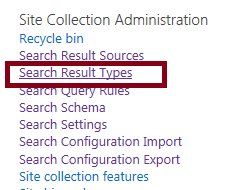
Scroll down and find the PDF entry. Select Copy from the drop-down menu:
Give the type a unique name and select the PDF Customized Item as the display template:

Click Save.
Now, the search results display previews using Office Web Apps:

And the documents open in Adobe with the search term pass-through:

CONCLUSION
There are various options and behaviors when handling PDFs in SharePoint 2013. Using Office Web Apps server somewhat forces you down a customized search experience path. The easiest and most consistent option is to have Office Web Apps handle all PDF interactions via the Word App Viewer. Providing the search term pass-through is another option but requires display template modification as explained in this post. I hope this post provided insight into this topic.