Showing posts with label Office Web Apps Server. Show all posts

Friday, March 29, 2013

SharePoint 2013: Office Web Apps Issue - We Can't Open This Document - Resolved

I was building out my production environment and configured Office Web Apps as I have done in the past. However, I was receiving an error when attempting to preview search results:


Sorry, there was a problem and we can't open this document.

Apparently, since I was using HTTP, I needed to perform one more step on the SharePoint 2013 farm. I needed to allow OAuth via HTTP using the following commands:

$config = (Get-SPSecurityTokenServiceConfig)
$config.AllowOAuthOverHttp = $true
$config.Update()


I found this answer in a forum who received the information from here.

I did not have to do this previously when I built my stage environment but I may have been using the SharePoint 2013 Preview version. Now I am using the RTM/Released Version.

I updated my original post to include this step.


Thursday, October 4, 2012

Installing Office Web Apps Server for SharePoint 2013


Check out the whole SharePoint 2013 Solution Series
New Titles Added Weekly!

I wanted to evaluate Office Web Apps Server in SharePoint 2013 so I could see what the document previews would look like and understand the overall editing functionality. Therefore, I hijacked one of my staging servers and decided to install Office Web Apps Server. The server you choose can't have SharePoint running on it or any web application running on port 80. Also, Microsoft Office (or any Office component) cannot be installed.

The OS on my server was Windows Server 2008 R2 so I had to follow those directions. For Windows Server 2008 R2 you need to have the following:

  • Windows Server 2008 R2 Service Pack 1 and all required updates

  • .NET Framework 4.5 RC

  • Windows PowerShell 3.0

  • KB2592525

  •  
    Apparently this server did not have PowerShell 3.0 or the KB2592525 patch. So I needed to download and install those items first.
     
    Then I needed to run add the proper roles using the following in PowerShell:
     
    Import-Module ServerManager


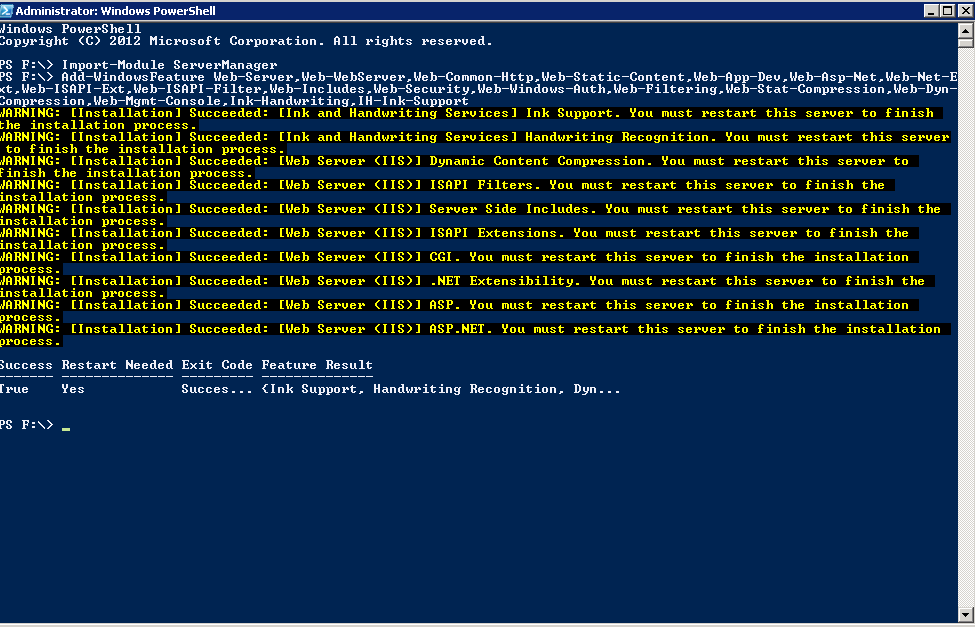
    Add-WindowsFeature Web-Server,Web-WebServer,Web-Common-Http,Web-Static-Content,Web-App-Dev,Web-Asp-Net,Web-Net-Ext,Web-ISAPI-Ext,Web-ISAPI-Filter,Web-Includes,Web-Security,Web-Windows-Auth,Web-Filtering,Web-Stat-Compression,Web-Dyn-Compression,Web-Mgmt-Console,Ink-Handwriting,IH-Ink-Support


    I noticed in the output as shown in the image, that a restart was needed. So I did not even take a chance and rebooted the server.
     
    Next it was time to install the Office Web Apps Server. I just searched for the product and found the download:


    I downloaded the package and ran the installation - pretty straightforward.


    Next it was time to create the new Office Web Apps Farm on the server via PowerShell. Since this was for evaluation purposes, I used the test environment configuration:
     
    Import-Module OfficeWebApps
    New-OfficeWebAppsFarm –InternalURL http://servername –AllowHttp -EditingEnabled


     Since I enabled editing, I needed to confirm the operation:
     

    The operation resulting with all of the properties being displayed:


    The next step was to test the Office Web Apps server using a browser to confirm that http://servername/hosting/discovery produced a wopi-discovery response. It did:


    So that was it on the Office Web Apps server side. Now I needed to switch the the SharePoint 2013 server and do some magic there.


    Create the new binding:
    New-SPWOPIBinding -ServerName <WacServerName> -AllowHTTP


    Set the zone:
    Set-SPWopiZone –zone “internal-http”

    If you are using HTTP, you need to allow OAuth over HTTP by using the following commands:

    $config = (Get-SPSecurityTokenServiceConfig)
    $config.AllowOAuthOverHttp = $true
    $config.Update()


    I didn't need to do this previously but while I was setting up my production server, I ran into an OWA issue. The answer was to run the above commands which I found in a forum who received the information from here.


    That's it! Bring up a document library with Office documents:


    Search for Office documents: (may need to perform a full crawl before the preview kicks in)


    This was very easy to install and implement! I was very suprised it worked the first time. It took a bit for everything to warm up and work but I really did not have to do much fiddling!

    Wednesday, October 3, 2012

    SharePoint 2013: Document Library and Search Results Document Preview with Office Web Apps Server


    Check out the whole SharePoint 2013 Solution Series
    New Titles Added Weekly!

    I kept reading that if you have Office Web Apps Server up and running, you can connect it to your SharePoint farm and then, automagically, document previews will start appearing both in Search and in Document Libraries. I have not found any examples of what this document preview looks like so I had to take matters into my own hands.

    I finally installed Office Web Apps Server on one of our staging servers and connected it to a SharePoint 2013 farm in stage. After some warming up, the document previews for Office documents started working like a charm. For the Search Results, I needed to run a full crawl again. This is because the javascript in the Display Templates uses alternate URLs (defined by crawled properties) which take the Office Web Apps server and the document preview into consideration.

    I essentially followed the steps here: http://technet.microsoft.com/en-us/library/jj219455(v=office.15).aspx and used the standalone test environment section using Internal HTTP. I have some screenshots of the steps so I will probably post my installation journey as well. (UPDATE: The installation post is here.)

    However, I was so excited that the Office document preview worked that I wanted to share the results. Below are some screenshots.

    Search Results - Hovering over a Word document (click image to enlarge)


    Document Library - Selecting the elipsis (...) on a Word document library item (click image to enlarge)
     
    The previews under Office Web Apps server is only for Microsoft Office documents. Therefore PDF previews do not render. However, at least for the search results, I have a PDF Preview solution.


    The document preview is the "cool" part about Office Web Apps server but not the business value part. The business value is the ability to edit and work with Office documents in the browser without the need for local Office applications.

    What does this mean? This means that business users may interact with Office documents through SharePoint directly in the browser on any device. So whether it is a laptop, desktop, smart phone, or iPad - there are no constraints in making those last minute edits.


    Matched Content