


Video streaming within your SharePoint environment was made possible in SharePoint 2013. The video files can be uploaded to SharePoint itself, linked into SharePoint as explained here, or referenced by embed code as explained in this post. To add support for Videos in your site collection, see this post.
To add a video from YouTube to your SharePoint video library, first navigate to the video on You Tube. Under the video stream, click on Share and then Embed. Copy the embed code:




To add a video from YouTube to your SharePoint video library, first navigate to the video on You Tube. Under the video stream, click on Share and then Embed. Copy the embed code:

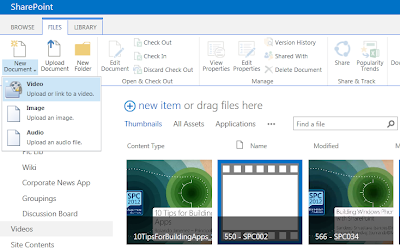
In SharePoint, navigate to your Video library (Assets Library) and click on New Document -> Video from the File top ribbon bar:

On the Videos page, select the "Provide code to embed a video from the web option", enter a name for the Video, and paste the embed code into the box provided:

Click OK. You are taken to the Video Properties page. Enter or modify any property settings and then click Save (either at bottom of the page or from the Edit top ribbon).
That's it! The YouTube video appears in your Video library as if it was actually in there:

As one of my readers pointed out (see comments), SharePoint now also supports a simple way of embedding YouTube videos into news feed posts by just pasting a YouTube URL; not the embed code for a video, but its page URL. Thanks David Bukhan!


